
Description
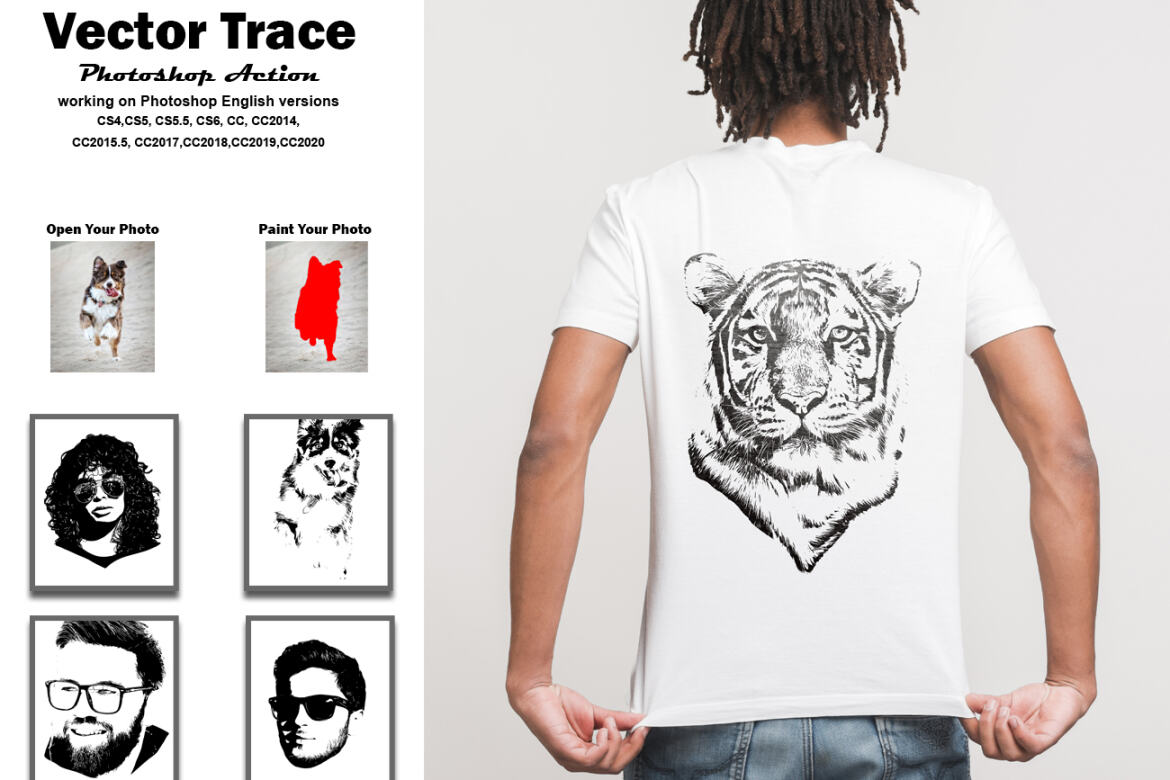
Vector Trace Photoshop Action
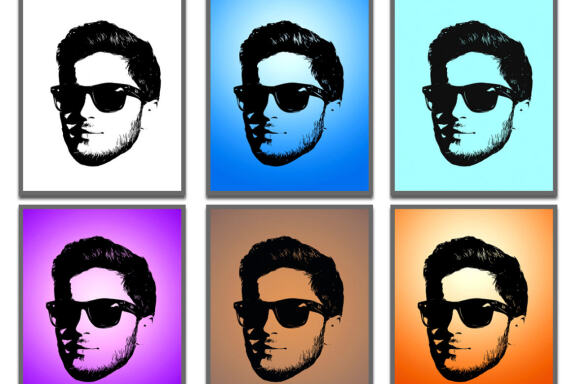
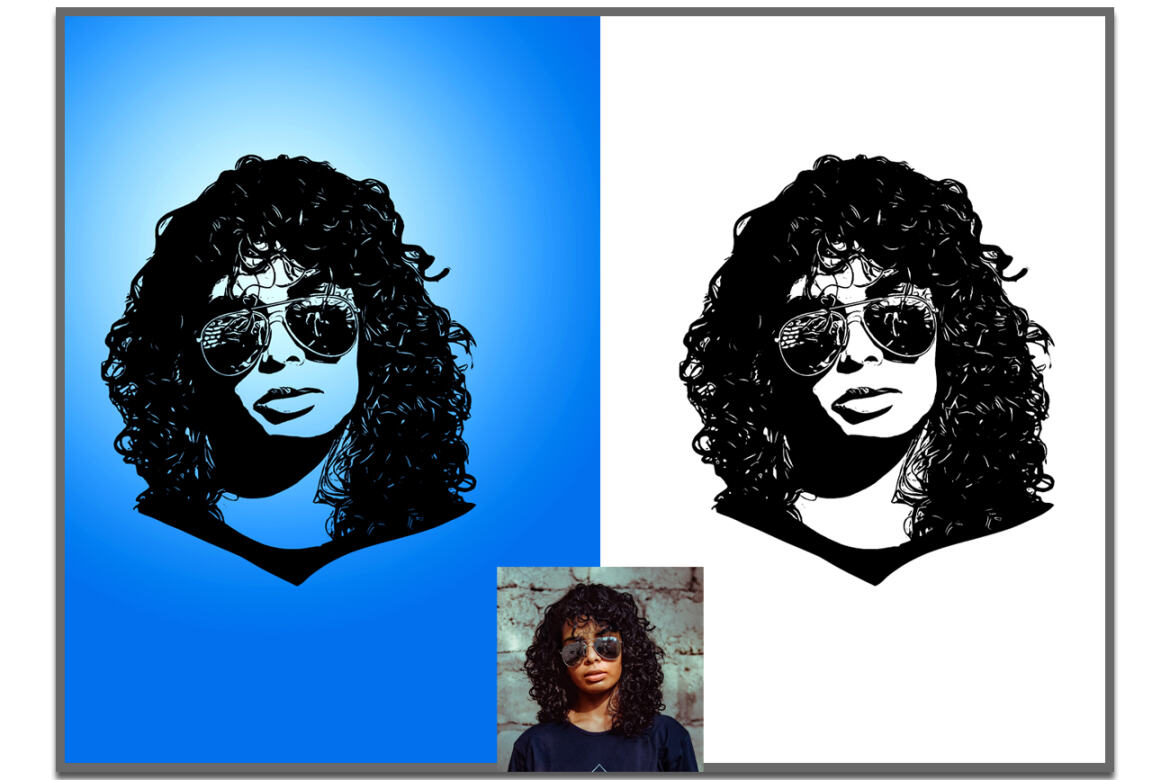
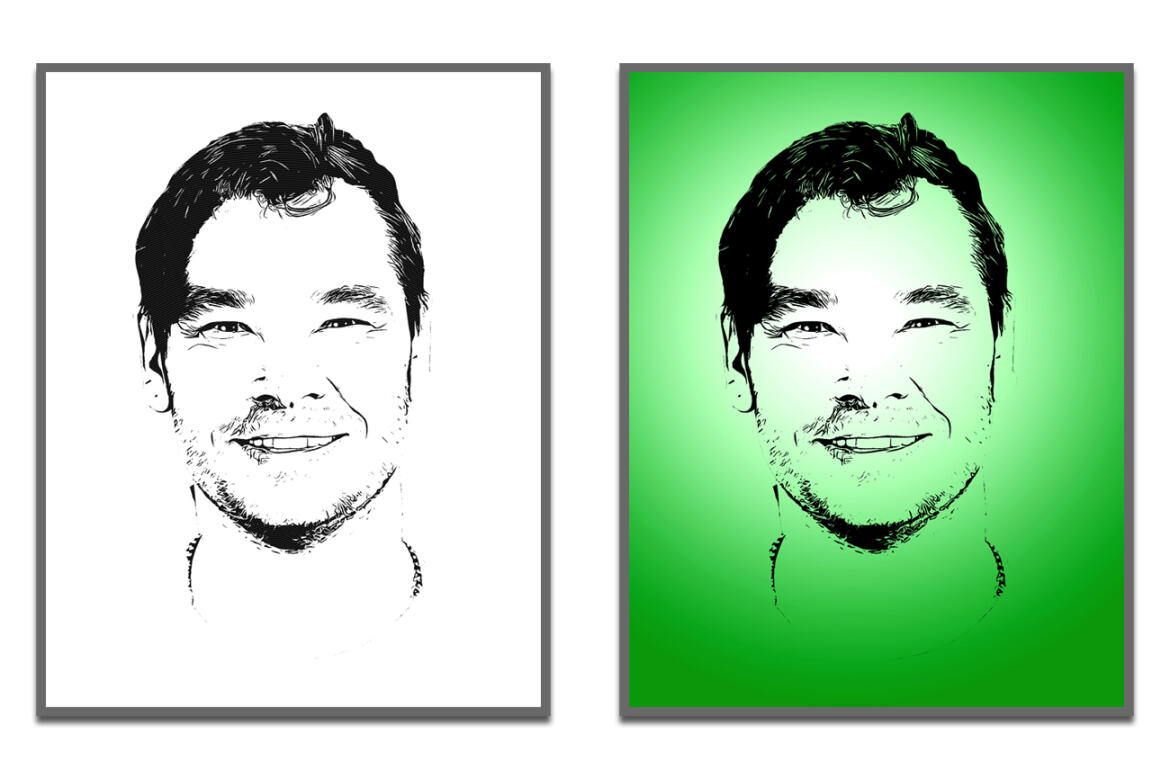
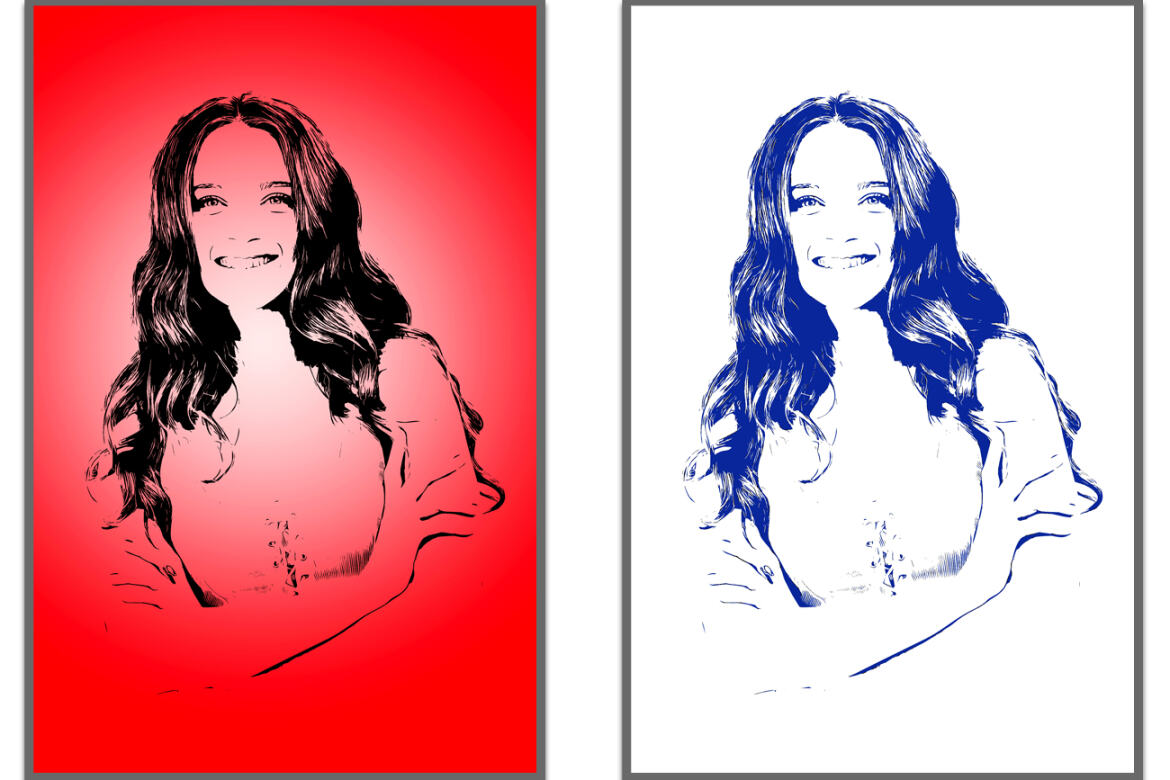
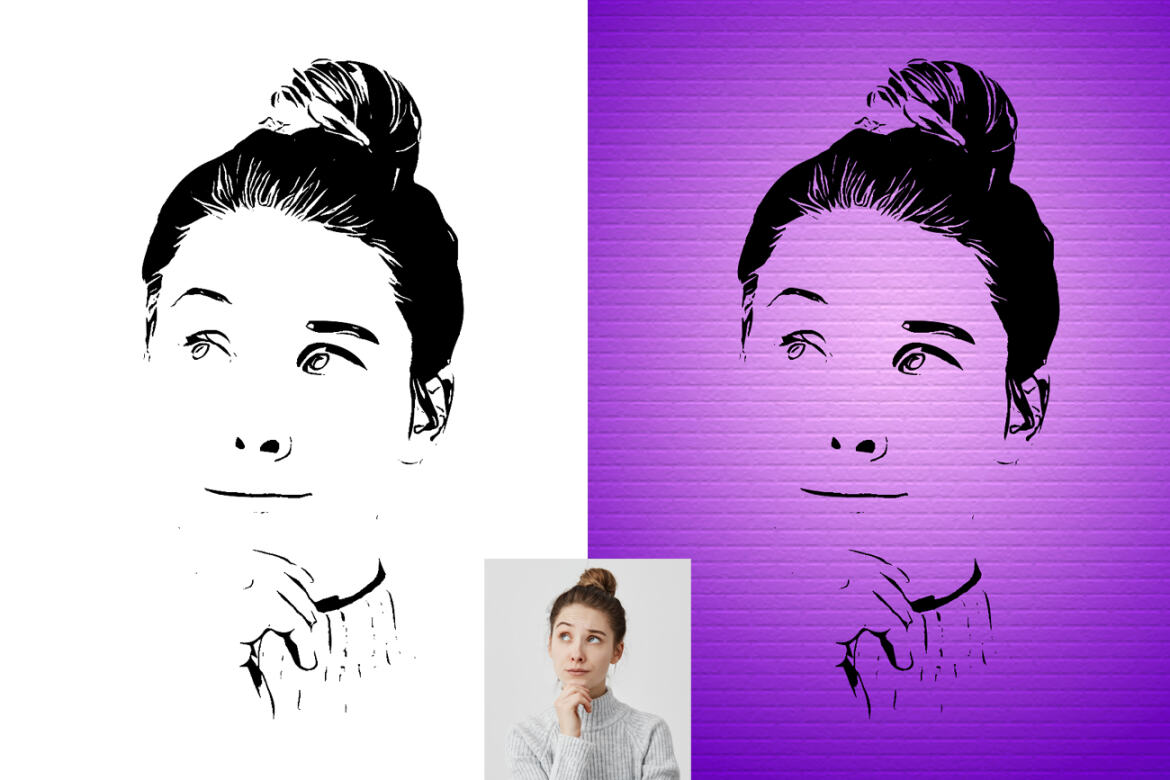
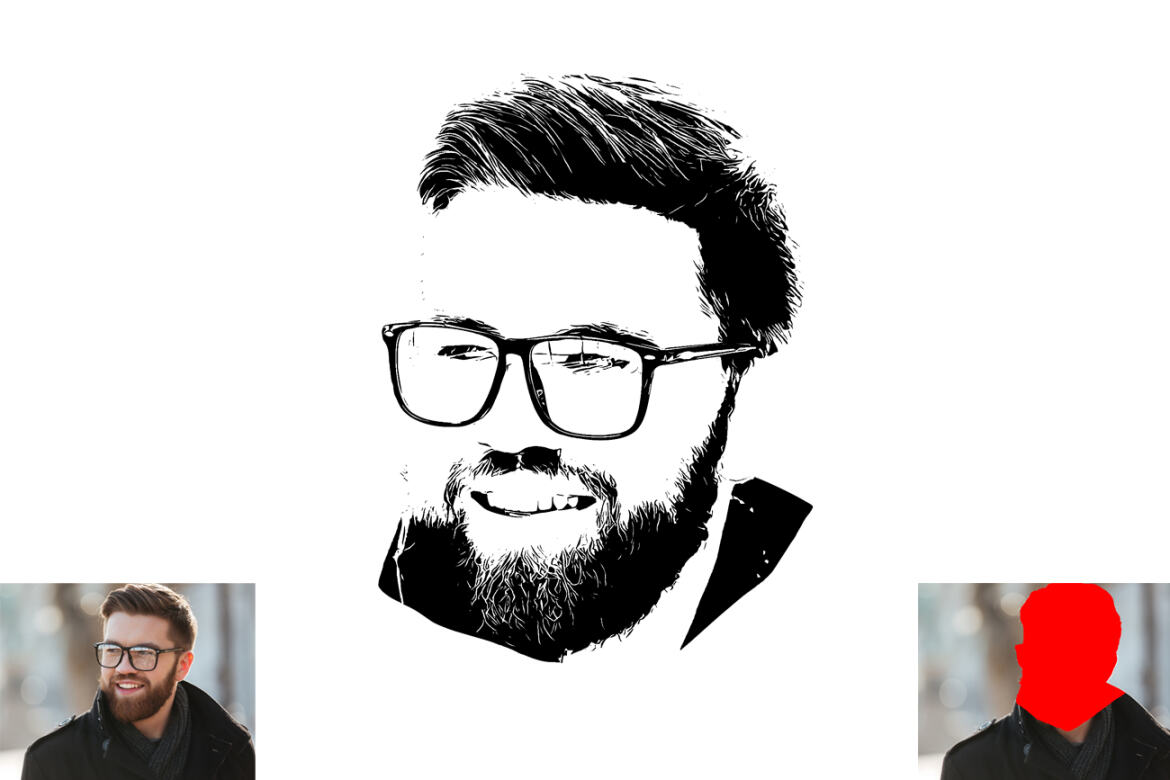
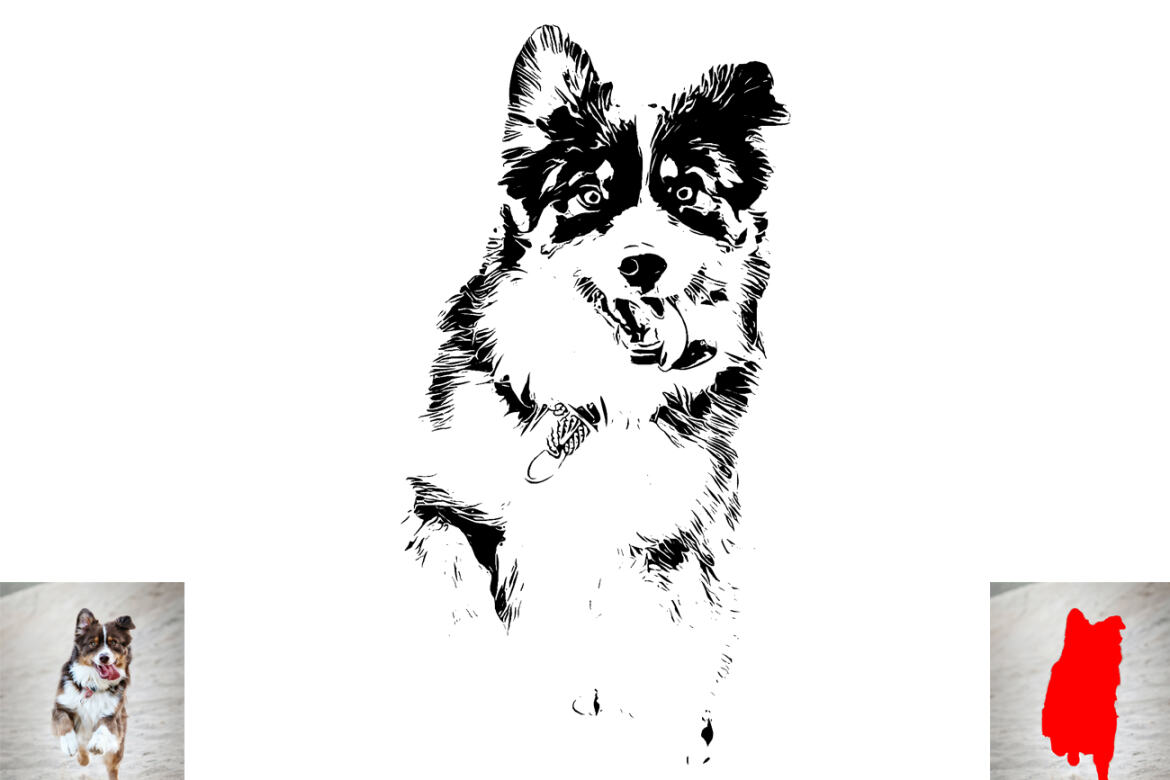
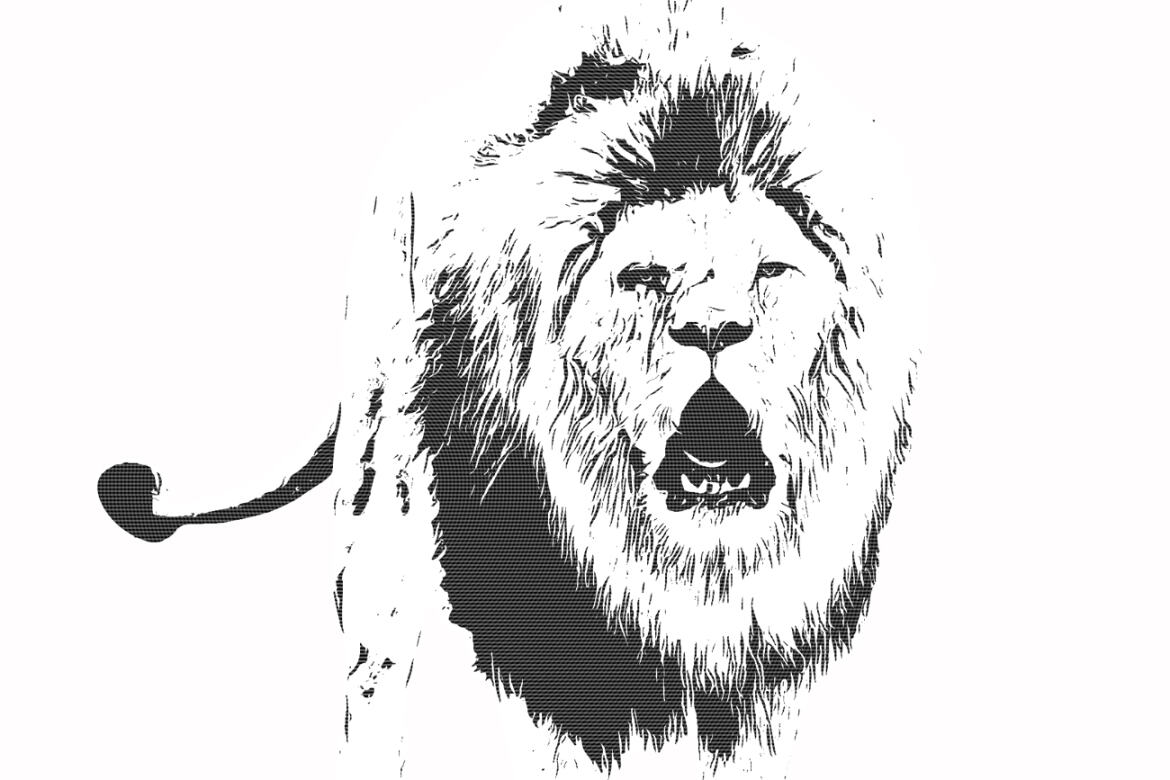
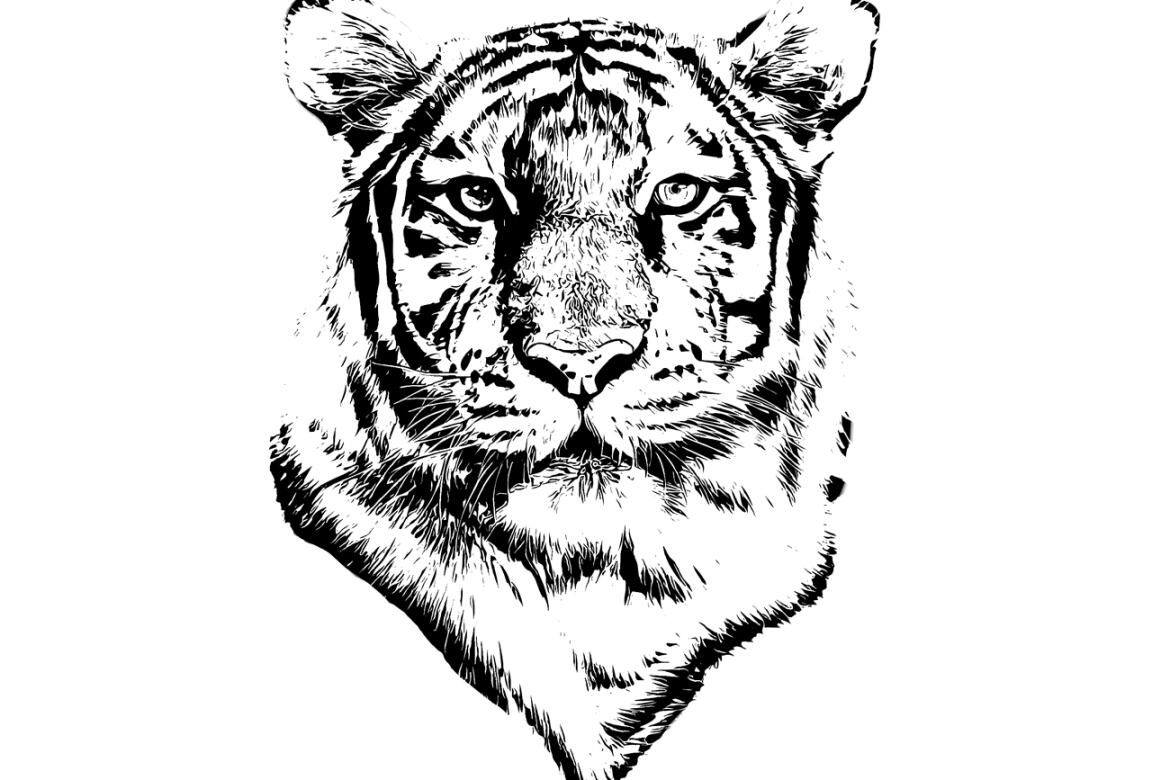
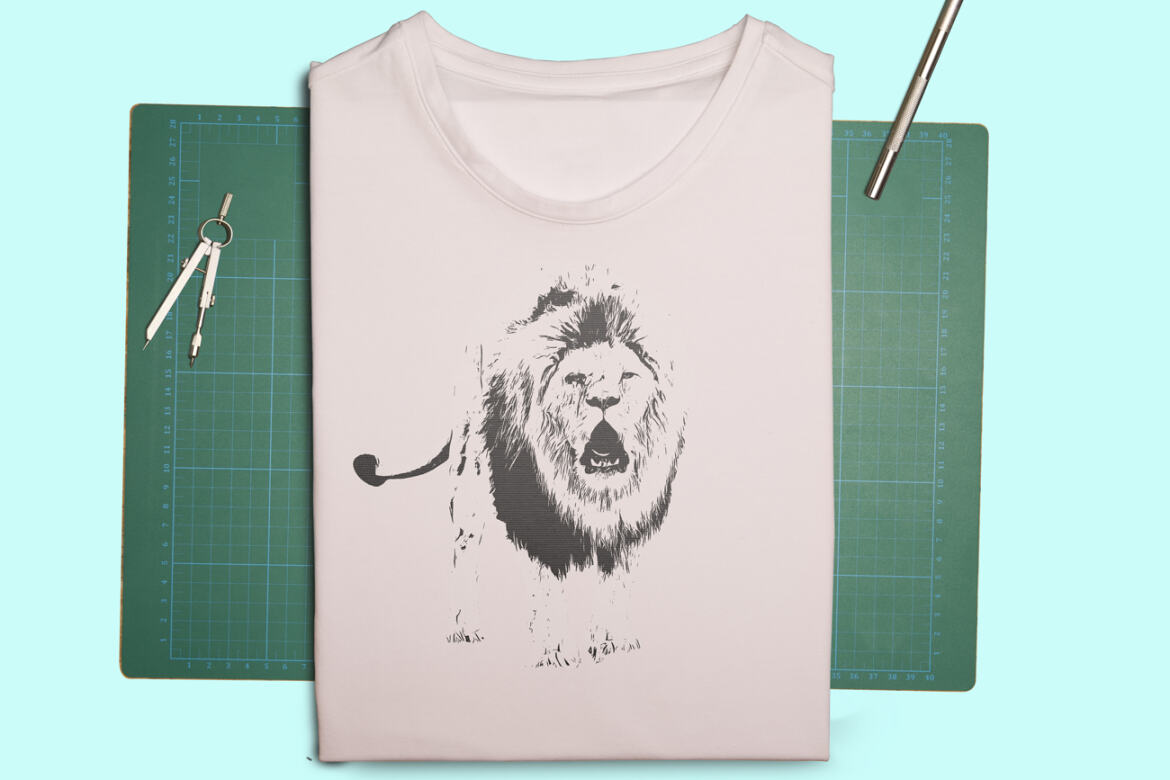
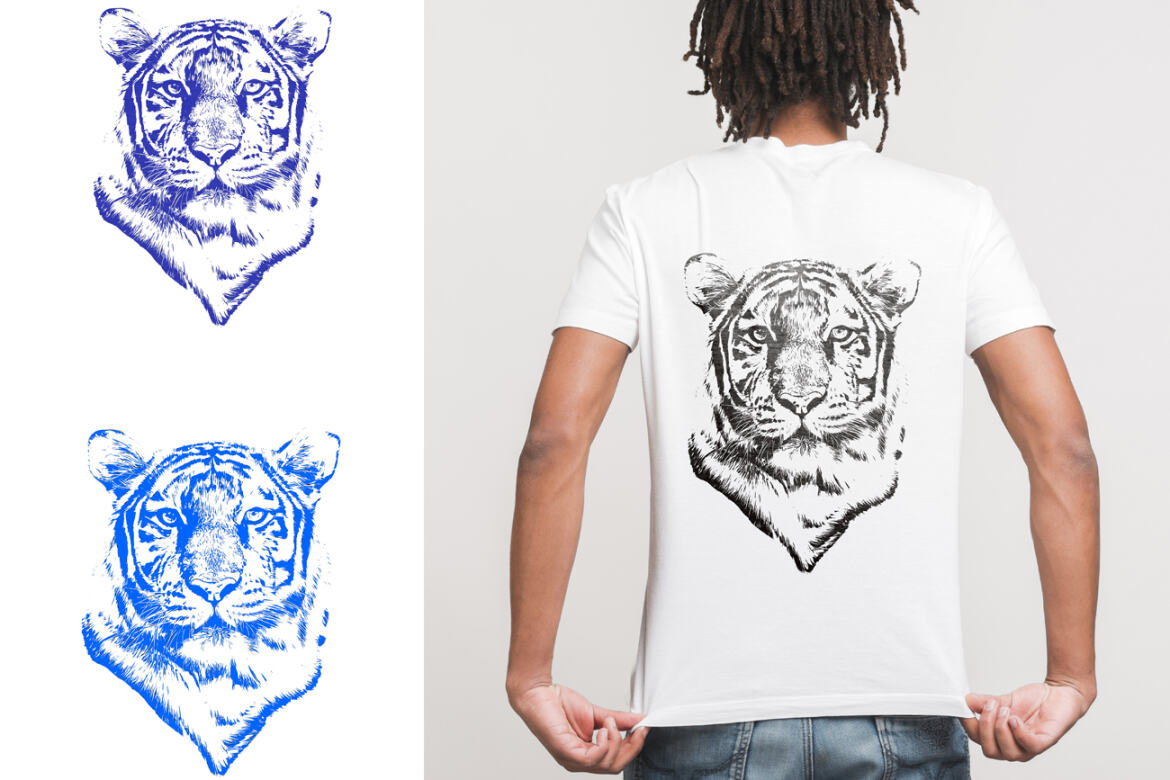
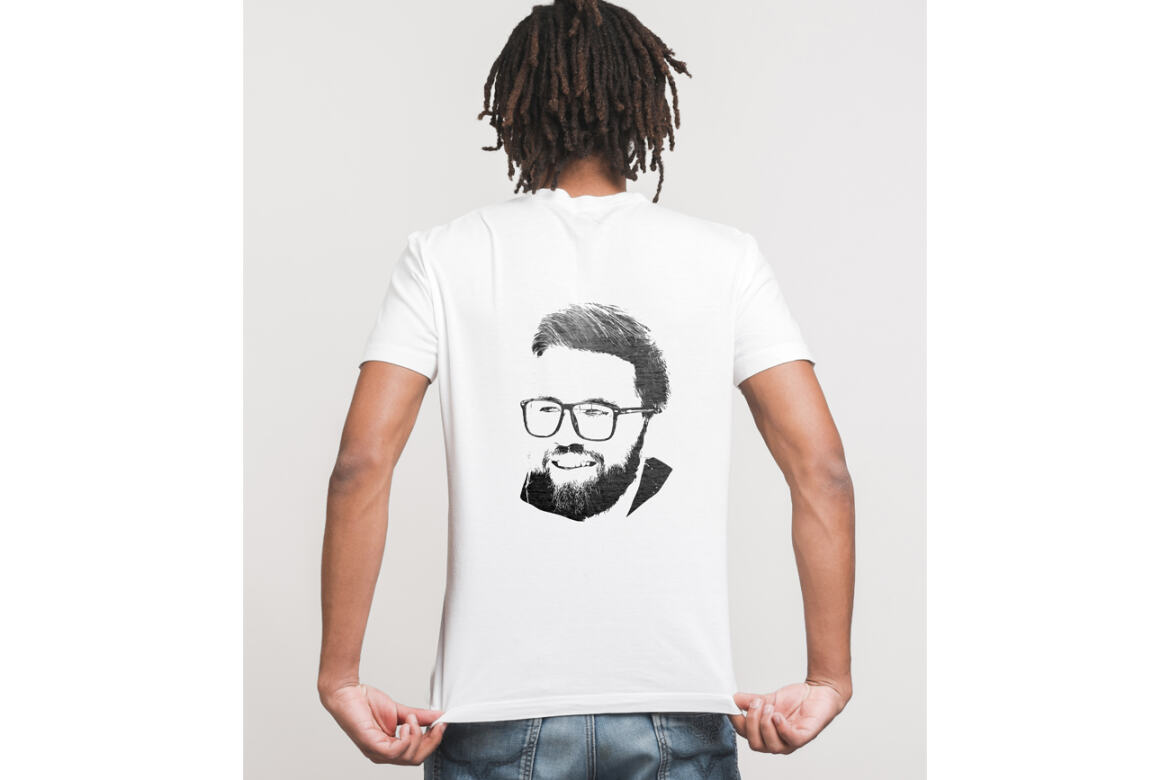
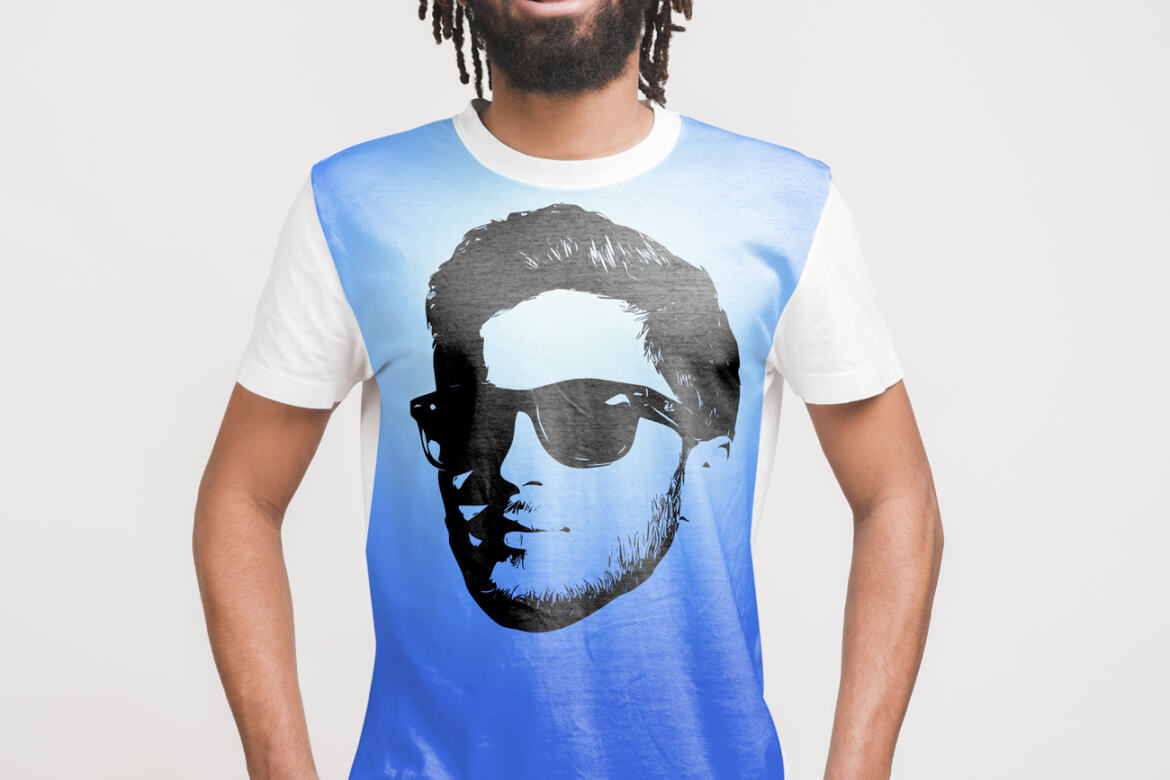
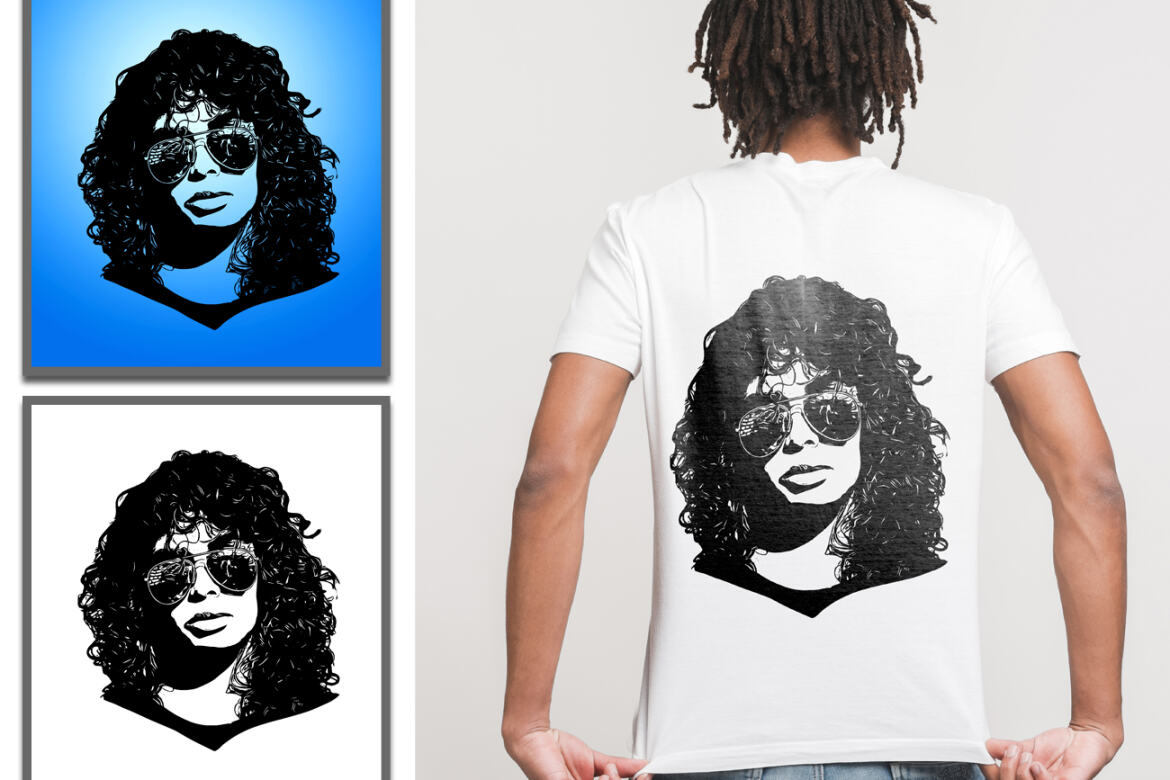
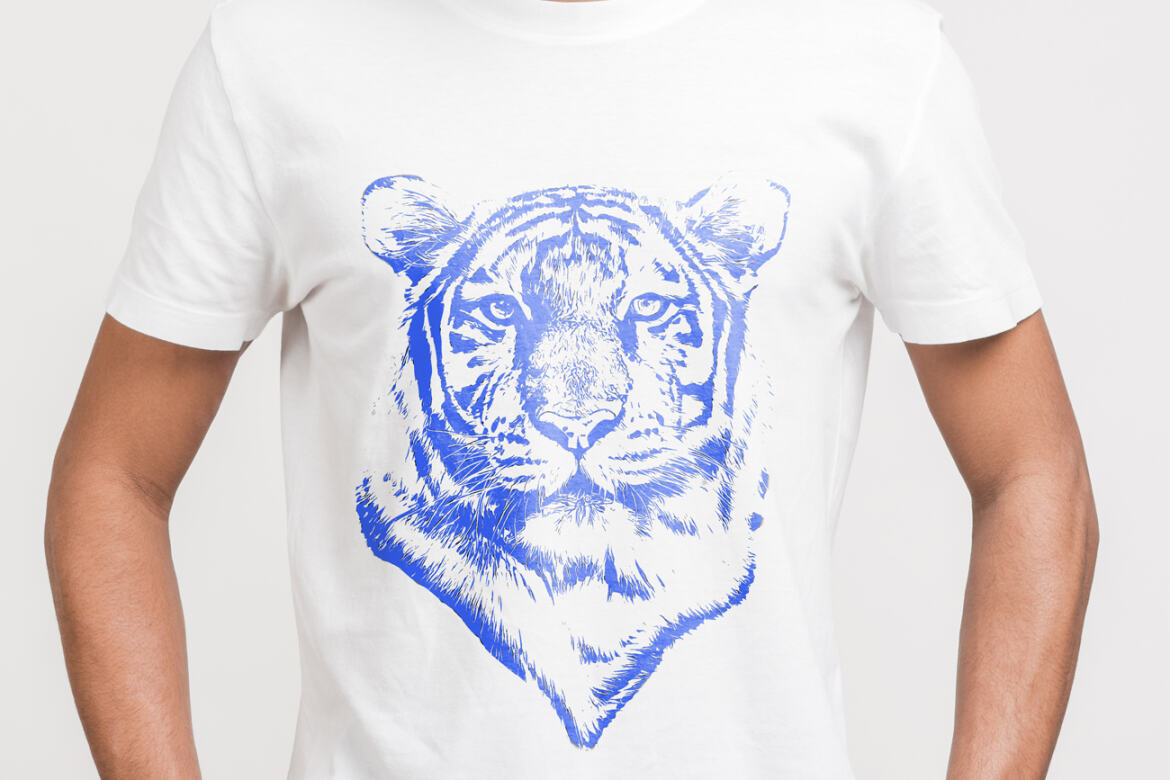
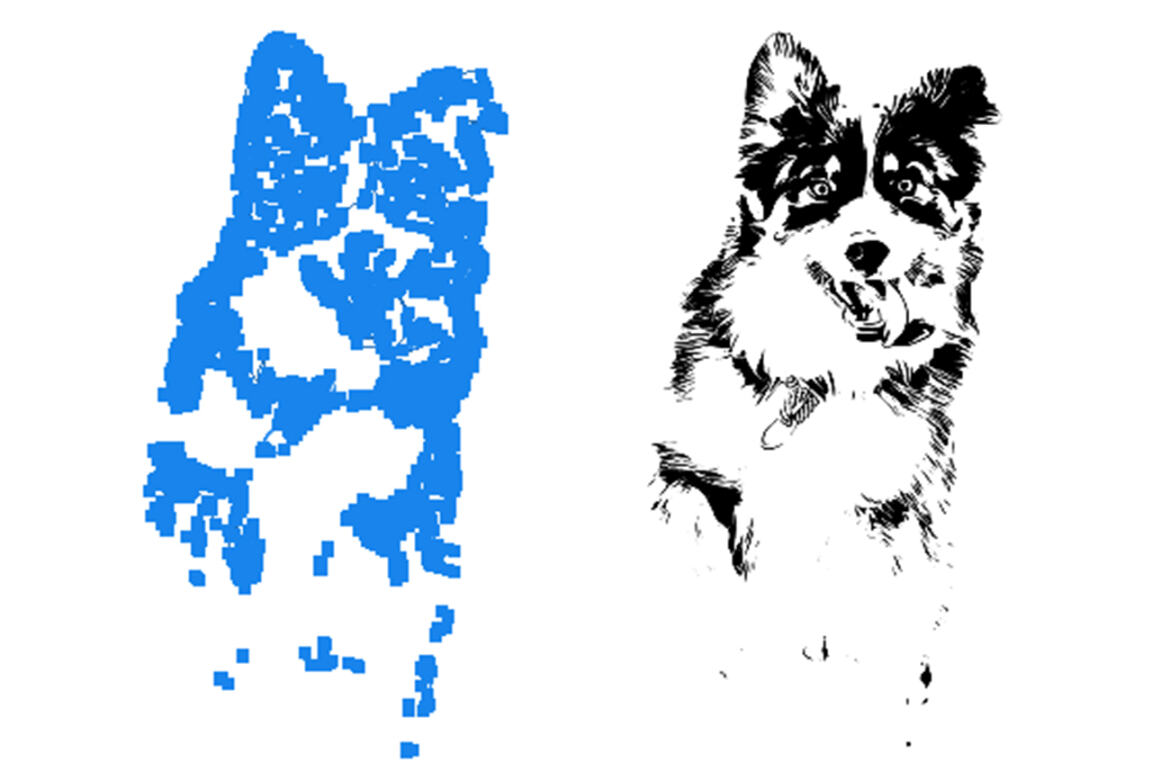
This Vector Trace Photoshop Action are perfect for photographers and designers. It’s enhances and adds more beautiful to images. It will help you to stunning your images to make unique and awesome looks. This set contains 10 different color option and 4 texture. When you open unviewed eye.
This action has been tested and working on Photoshop (English versions) CC2020 English Version. Software supported version:CS4,CS5,CS5.5,CS6,CC2015.5, CC2017,CC2018,CC2019,CC2020 English Version.
Most important instruction:
(1) How to Select the Subject
In this section, we are going to make a selection of our subject and then copy the subject to a separate layer. Choose the Quick Selection Tool (W) and select the background of the photo. Use the Shift-Alt buttons on your keyboard to add or subtract areas from the selection. After you've made a perfect selection, press Control-Shift-I on your keyboard to invert the selection. Now go to Select > Modify > Smooth and set the Sample Radius to 5 px. Next, go to Select > Modify > Contract and set Contract By to 2 px. Finally, go to Select > Modify > Feather and set Feather Radius to 2 px.
(2) Open your photo take a new layer then rename “paint”( in lowercase). Then select a brush and paint your image face area. Close "paint" layer eye and keep selection "paint" layer Then click action play button.
(3) When you run this action, you see a stop message “Remove unnecessary parts using brush tool
with black & white colors or with brush tool and mask. It’s up to you." Then play the action again.
Please follow the stop message instruction properly.
File Includes:
-
ATN Files include(Photoshop Action File)
-
10 Color Option
-
4 Texture
-
Vector Option
-
Help File
-
PDF Help File
-
Masking Option
-
Work on every photos.
-
High quality result.
-
Easy Customizable
-
Organize layers
-
Easy Install
-
User Guide
-
Easy to Use
-
No photoshop skill needed
-24 hrs support
Note: Preview images are not included Recommend: For best result use photo between 2000-3000px,DPI 300
Additional
- 10 color option
- masking option
Download Options
Join Pro Membership and access all the resources and unlimited downloads.

Share Resource
Related Resources
You might also like these hand-picked assets from the same category.
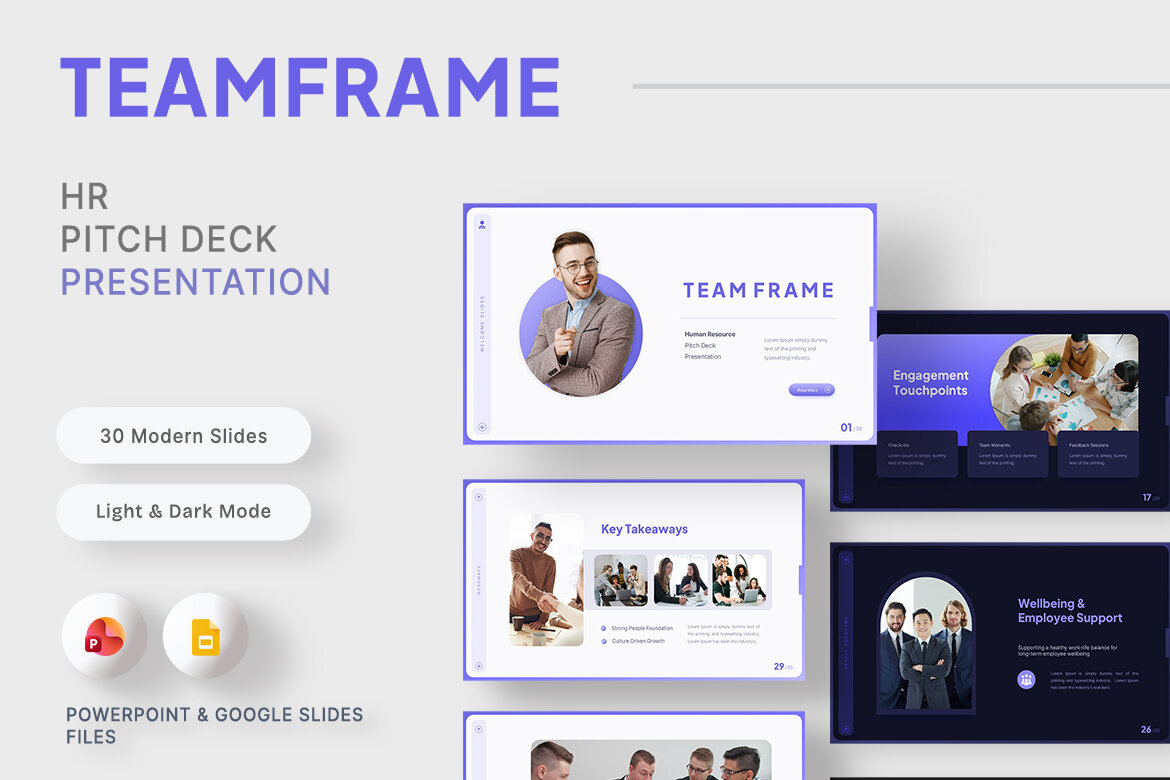
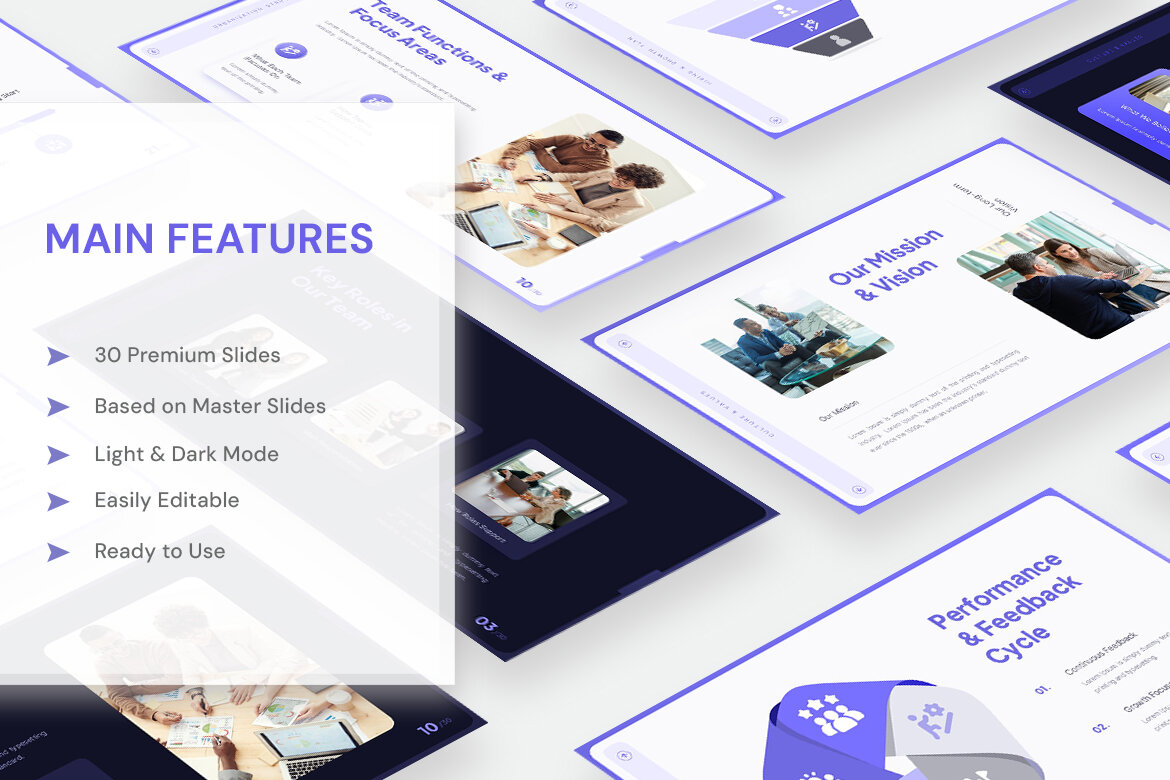
Teamframe - HR Pitch Deck Presentation
by New Coral Design
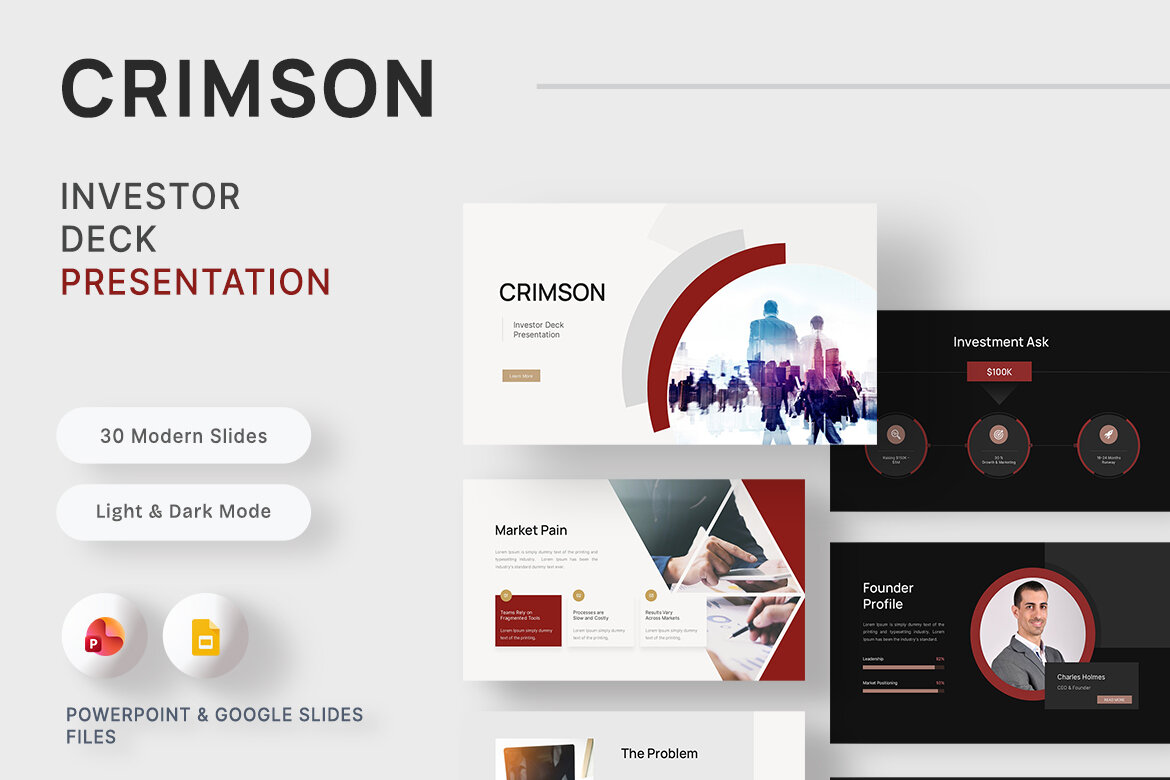
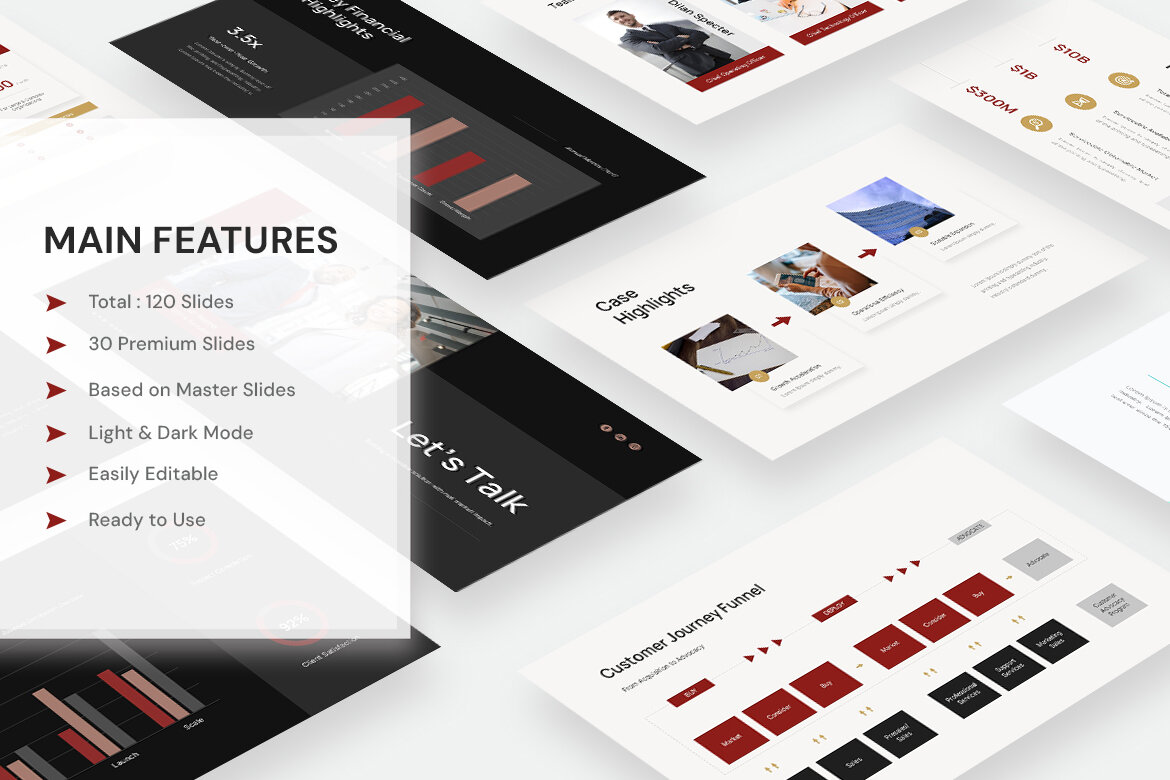
Crimson – Investor Deck Presentation
by New Coral Design

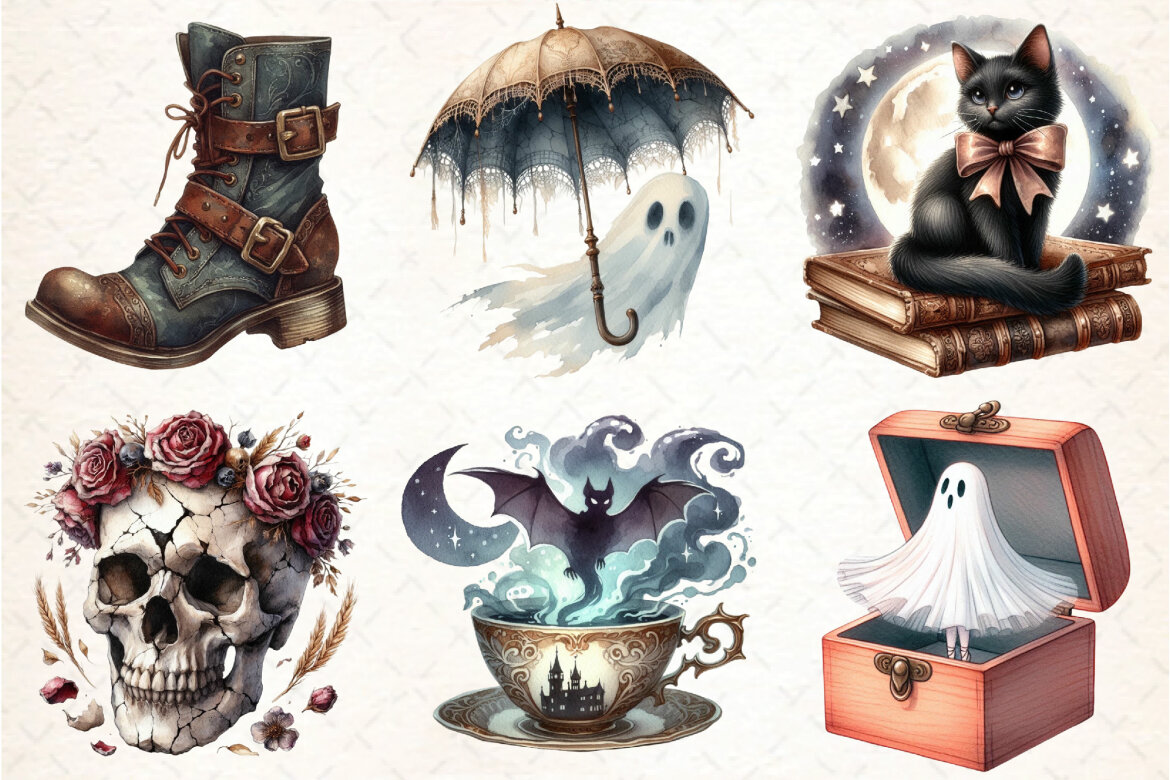
Antique Halloween FREE Sublimation Clipart
Freeby DreamCafeArt
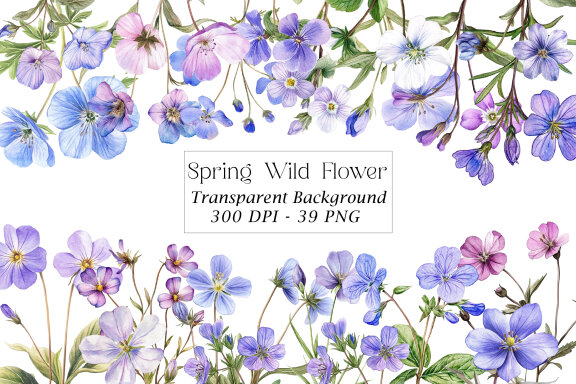
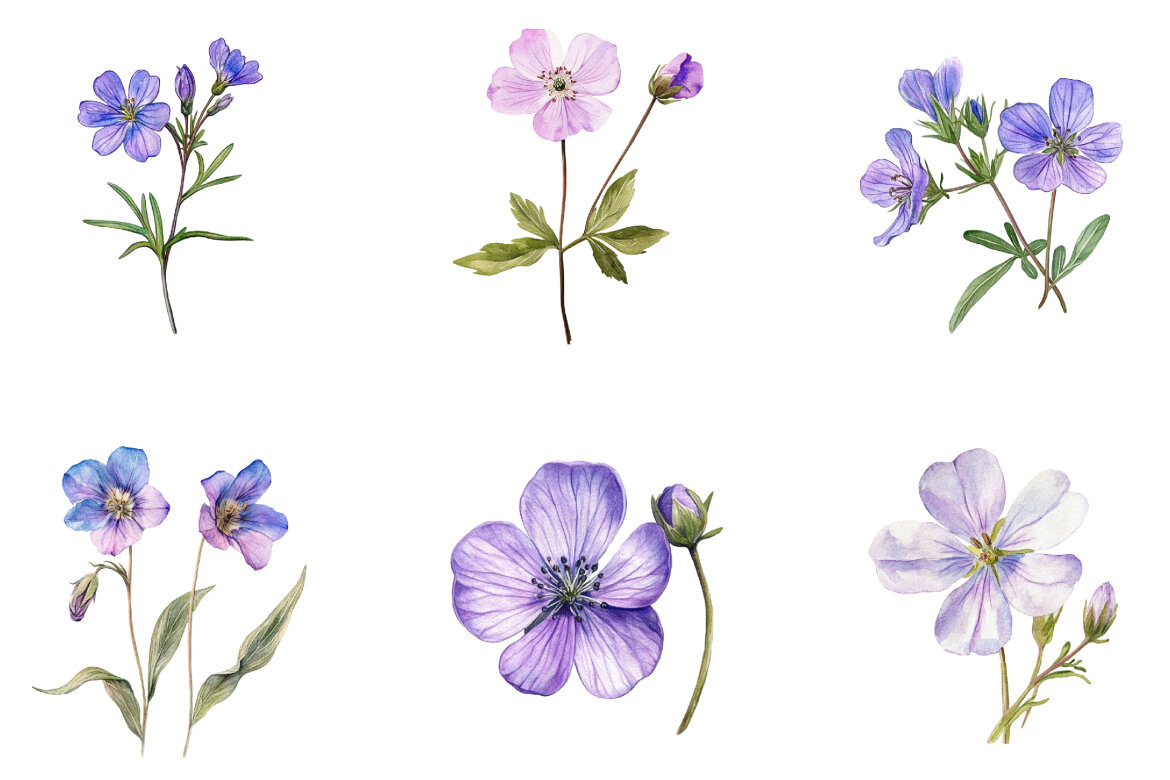
Spring Wild Flower FREE Clipart
Freeby Pixel Shop
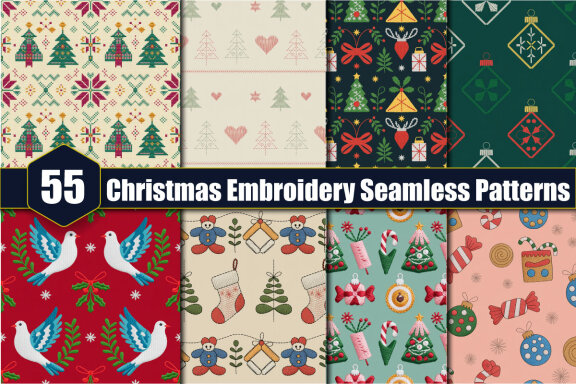
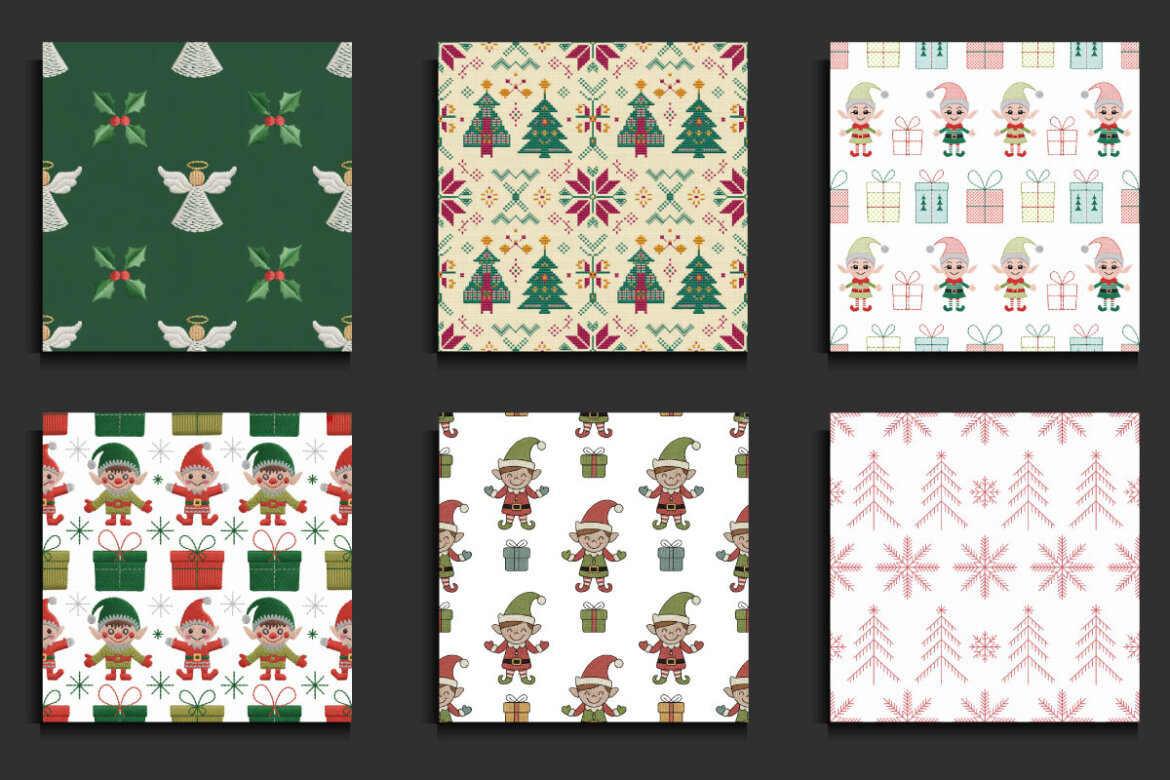
55 Christmas Embroidery FREE Seamless Patterns
Freeby protabsorkar11
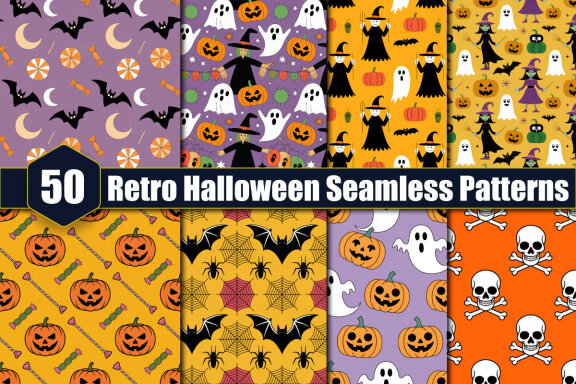
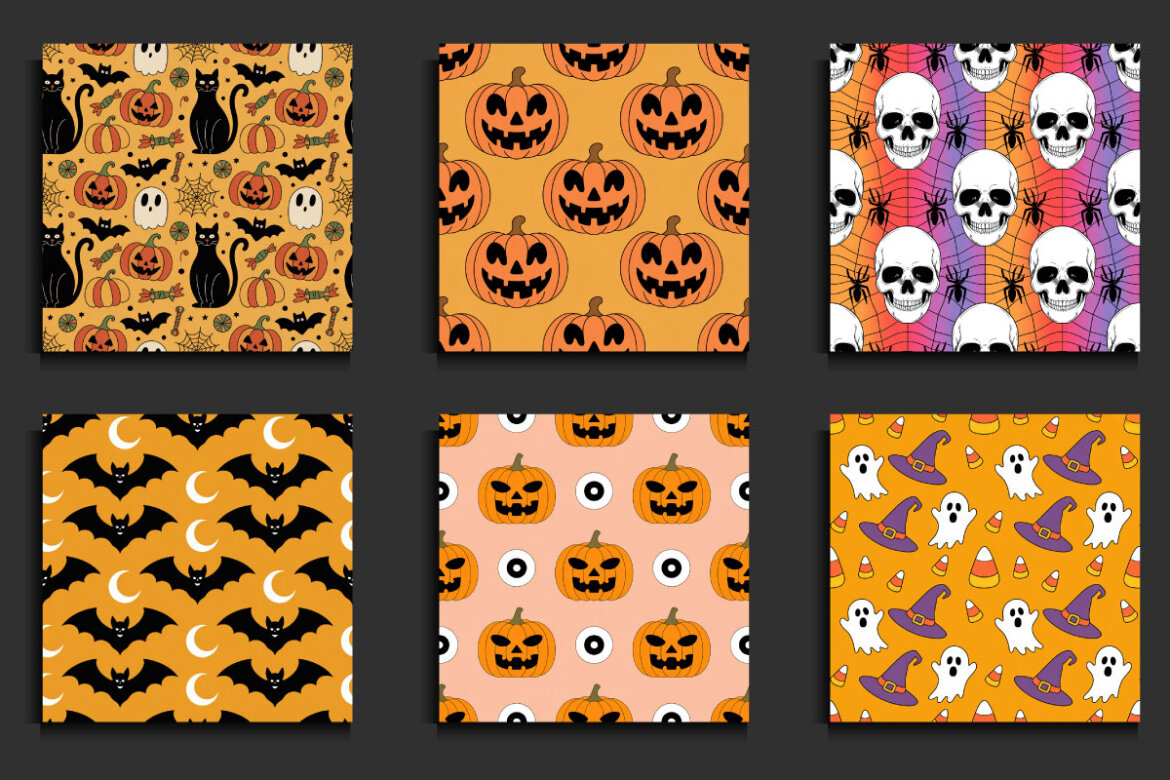
50 Retro Halloween Seamless FREE Patterns
Freeby protabsorkar11
Fall Alphabet Sublimation FREE Clipart
Freeby Pixel Shop
Watercolor Cute Halloween FREE Clipart
Freeby Dreamshop


Vintage Christmas Sublimation FREE Bundle
Freeby Dreamshop